
Clepit updates, in your Slack channels

The Clepit app posts to the channels you choose when a page is published or someone comments. It reads no Slack messages.

Install from Clepit
PlaceholderThe Clepit app posting in a Slack channelA real screenshot from the installed app goes here.

What arrives in Slack

When a page is published

A message with the page title and a link that opens it in Clepit.

PlaceholderA published page, announced in SlackA real screenshot from the installed app goes here.

When someone comments

A message naming who commented and on which page, with a link that opens the page.

PlaceholderA new comment, announced in SlackA real screenshot from the installed app goes here.
You pick the events
Published pages, new comments, or both, for each connection.
You pick the channels
Each channel gets one introduction when it is added, naming who set it up.
It only posts
The app lists your channels and posts to the ones you chose. Nothing more.

Set it up in three steps

Settings, Integrations

Everything is set from one page of the Clepit console.
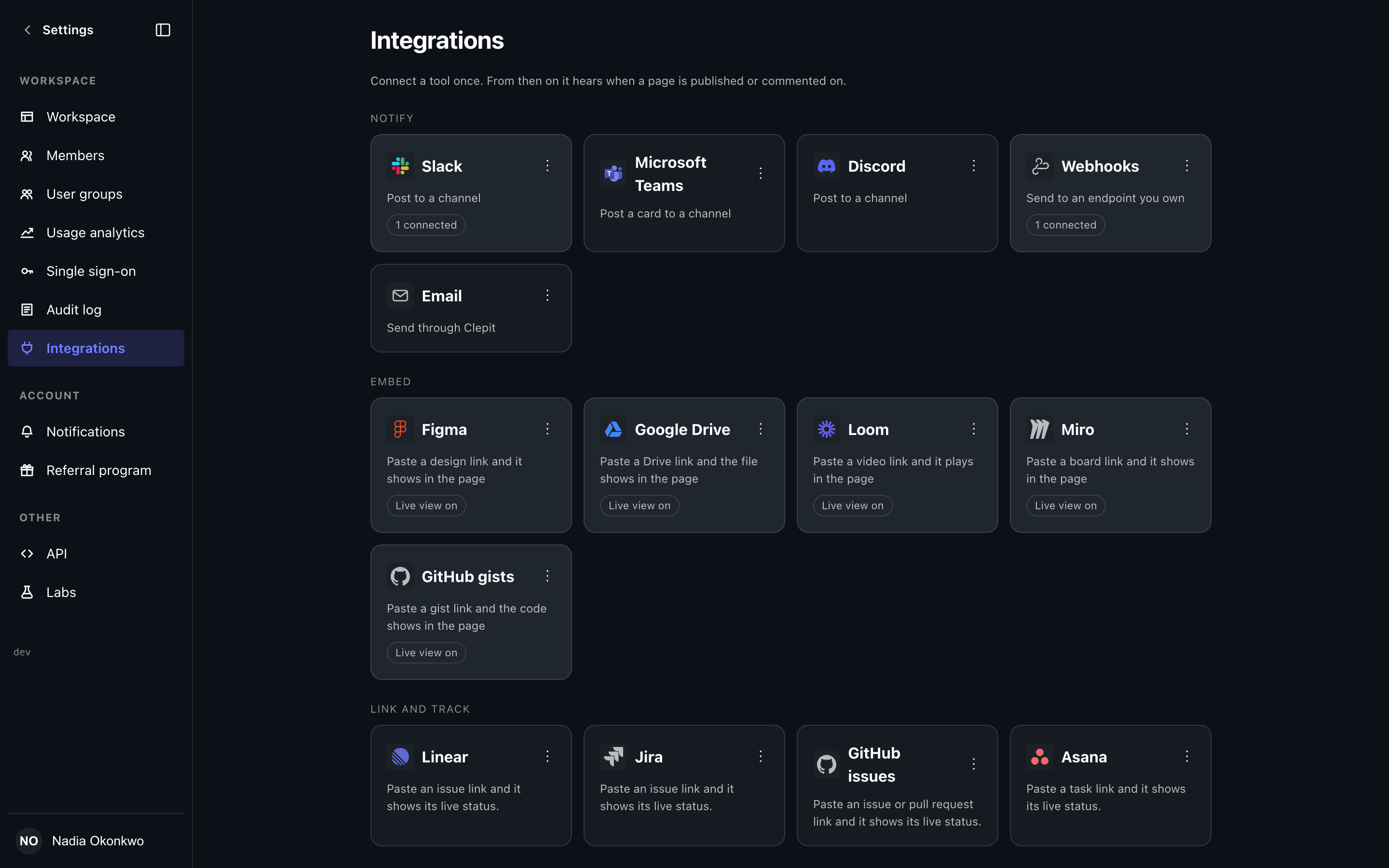
The Integrations page in the Clepit console
  1. Open Integrations in Clepit

    Go to Settings, Integrations, Slack. You need a Clepit organisation and the right to manage its integrations. No account yet? Sign up free.

  2. Install the app

    Slack asks you to allow three things: post messages, list public channels and list private channels.

  3. Pick channels and events

    Invite @Clepit to a channel in Slack, then add it in Clepit and choose what it hears.

Privacy and support

What Clepit keeps
The encrypted token Slack issues at install, the channels you chose and a record of each notification sent. Disconnecting removes them. Privacy policy
Leaving
Disconnect in Clepit and the app leaves your channels. Removing it from the workspace is done in Slack.
Help
Write to support@clepit.com. No extra account is needed.

Ready to connect Slack?

Install the app from your Clepit organisation, or start one free.