Kasutus
Mida AI sellele organisatsioonile iga kuu maksab, kes seda kasutas ja millised limiidid selle peatavad.
Turning AI on
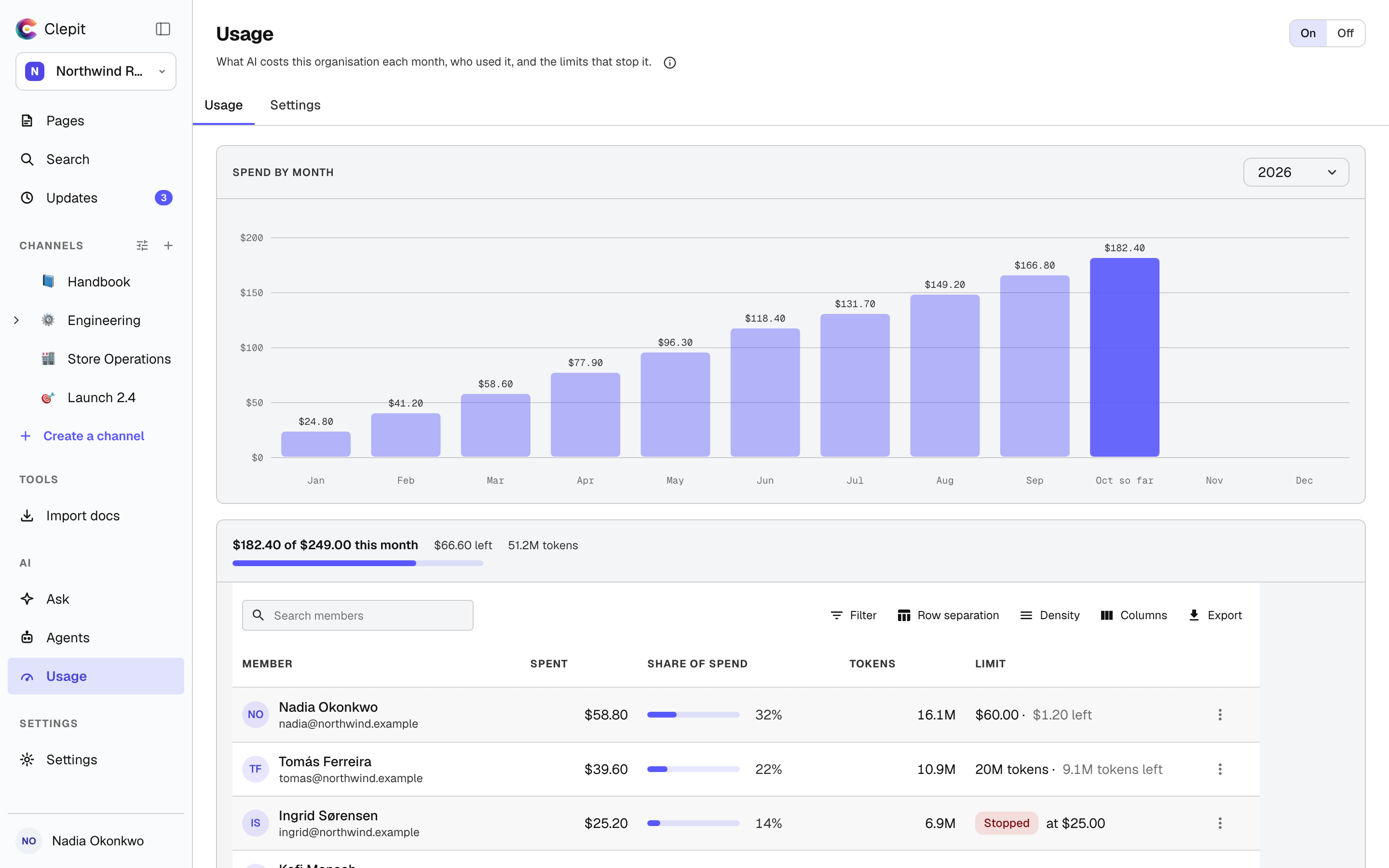
Usage sits in the AI group of the rail, beside Ask and Agents. While AI is off, Ask, summaries, translation, rewriting, directories and subdocs are unavailable to everyone in the organisation. Someone who manages billing turns it on from this page. AI is billed by the token, at the price of the model you choose plus 20%, and added to the organisation’s monthly bill, so a card must be on file first: the form sends you to billing to add one. The form also takes an organisation monthly limit, filled in with your plan’s monthly price, the percentages at which to warn on the way, and who receives the warnings. Leave the limit empty for no limit.
Turning AI off
The switch in the page head turns AI off for everyone in the organisation, and it asks first. The model, the limits and the month’s spend are kept, so turning AI back on picks up where it stopped. A person who cannot manage billing sees the switch as it is set but cannot move it.
Reading the month
The Usage tab opens on the current month. Spend by month draws the year one column per month, with this month marked as so far; choose a column to read that month, or another year from the select beside the title. Beneath it, the month reads against the organisation limit: what was spent, what is left and the tokens used. The members list what each person spent, their share of the month, the tokens behind it and their own limit, and Where it went splits the month’s spend across Ask, summaries, translation, rewriting, directories and subdocs.
Limits and warnings
A limit stops AI when it is reached, for the whole organisation or for one member, measured in money or in tokens. The organisation limit is set on the Settings tab, and a member’s limit from their row on the Usage tab. Each limit warns the members, roles and email addresses you choose at the percentages you choose, each warning once a month; a role reaches everyone who holds it when the warning goes out. At 100% AI stops for whoever the limit covers, and the person who asks AI for something then sees the limit and the day it resets. Limits count each month afresh.
Your own AI account
On a plan that includes it, the organisation can run every AI feature on its own AI account instead. Choose Your own AI account when turning AI on, or connect one from the Settings tab: paste an API key created in your provider’s console, which is kept encrypted and never shown again, and choose the model it runs on. Your provider bills you for what AI uses, and its spending limits are set with them, so the page sets no limits on an own account. Clepit charges a price per seat a month on the organisation’s monthly bill; every seat on your plan counts, at the price for its size, and the tip beside the price lists the sizes. The Usage tab then shows seats by month and the tokens each member used. Removing the account turns AI off for everyone and deletes the key; turning AI back on then uses Clepit AI, billed by the token.