ውህደቶች
ገጽ ሲታተም ወይም አስተያየት ሲሰጥ የሚሰሙ መሣሪያዎች፣ እና እያንዳንዱ እንዴት እንደሚገናኝ።
The catalogue
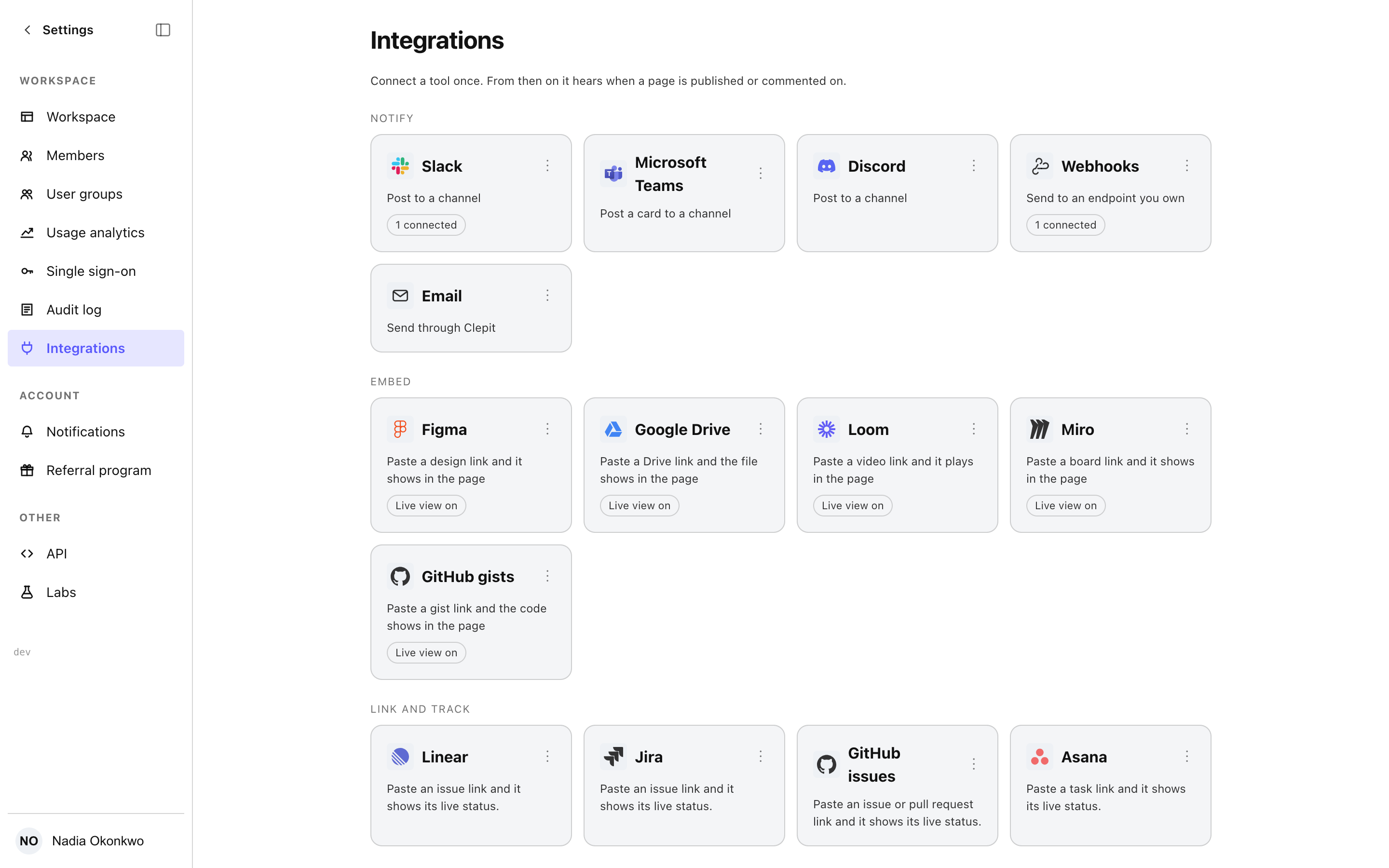
Every tool the console can connect is always on the page, so what is possible is never hidden behind what happens to be connected: Slack, Microsoft Teams, Discord, plain signed webhooks for anything with a URL, and email sent through Clepit. Each card carries its own menu. Connecting a tool asks for its first destination at once, because a connection with nowhere to send is not a connection yet.
Destinations
A destination is whatever the tool takes: a named webhook URL for Teams, Discord and webhooks; a channel picked from the installed workspace for Slack; an address for email. Slack installs through its own consent screen and comes back to this page with the workspace connected; until that happens the row says it is not installed and offers Install where Add would be. A pasted URL must be a public https address, and the page shows a hint of it afterwards, never the URL itself: nothing on any screen can read a secret back.
Embedding what you paste
Paste a Figma, Miro, Loom, Google Drive or GitHub gist link into a page and the page shows the thing itself: the design, the board, the video, the file, the code. Each of those tools has a card under the Embed group, and its menu turns the live view off or on for the whole workspace. Off, its links show as link cards for everyone, and the card says so in a line beneath it. What a paste does for you is your own choice under Preferences: show it live, offer to, or show a card. A gist is framed as GitHub draws it on the web; a phone and every export draw its files as code blocks instead, so nothing depends on a browser being present.
Your Google account
Google Drive files are private to whoever they are shared with, so the workspace cannot open them for you. Connect your own Google account from the Google Drive card and a Drive link you paste carries the file as your account sees it: its name, its type, its icon. A file you cannot open says so instead of pretending, with Connect or Try again beside the reason when there is something to do. Your connection is yours: it appears under Your accounts, only you can disconnect it, and the card counts how many members have connected without naming them.
Issue links that stay current
Paste a Linear, Jira, GitHub or Asana link and the page shows the issue as it stands: its key, its title, its status in the tracker’s own word and who holds it, in a chip inside your sentence. The chip is read again when the page opens, when you come back to it and every five minutes, so a page written last week shows this morning’s status. Under Preferences you can hide the status or the holder in every chip, and have a link pasted on its own line become a card instead of a chip; a card’s menu turns it back into a chip and a chip’s menu turns it into a card. The Linked issues block gathers every issue on the page into one table. Where an issue cannot be read the chip says why: connect the tool, no access, or the tool did not answer. Exports and the public page print each chip as its key and title with the status beside it.
Connecting a tracker for the workspace or for yourself
Each tracker’s card connects twice over. Connect for the workspace, which needs the workspace privilege, reads issues for every member: chips read through it first. Connect your own account is the fallback when the workspace has no connection or cannot see the issue, and it is yours alone. Both sit in the card’s menu; the workspace connection is listed under Connected with who made it and when, and your account under Your accounts. Disconnecting revokes the token at the tool where the tool allows it and always here. A Jira link on a site of its own domain is recognised once one of your connections reaches that site.
Events, templates and signing
Configure holds which events a connection hears: a page being published, a comment being made, or both. A body template can reshape what a webhook receives, with the title, body, link and event name filled in. A hook can also carry a signing secret, and every delivery is then signed with it so your endpoint can verify the sender. Both fields are write-only: leaving one empty keeps what is set, and Remove clears it.
Testing, disabling and revoking
Send a test posts one message and waits for the tool to answer, then reports what it said, so a channel that no longer exists is named rather than guessed at. A connection can be disabled and enabled again without losing anything; revoking removes it and its destinations for good, and asks first. Every row shows when it last delivered, or that it never has.
Bringing a wiki in
The Import group brings pages in from the tools a team is leaving: a Notion export, a Confluence space export, a folder of Markdown files, or a Google Doc read through your own Google account. Import docs sits in the sidebar under Tools, and a channel’s menu offers Import docs here with that channel already filled in; each card under Import also opens the same flow with its source chosen. Drop the export and the console reads it first: every top-level page is listed, ticked, with how many pages sit beneath it and how many things will not convert, and each can be sent to a channel of its own before anything is written. Import runs in the background: the dialog can be closed, the sidebar row shows a dot while a run is in flight, and a notification says when it is done.
What could not be converted is named where it stood, as a warning with the exported file attached where the tool wrote one, and once more on an import report page at the top of what came in, listing every page as a link and every item with the page it was on. Every imported page carries an Imported badge beside its other badges, with the source, the day and who ran the import in its tooltip; Remove imported badge in the page menu takes it off. Google Docs needs your Google account connected, and one more permission the first time, which the flow asks for. The phone shows the badge and the pages, and never imports: an export lives in a desktop’s file drawer, not a phone’s.
Where this meets the docs
A signed webhook carries the same events the realtime surface announces, and the REST reference describes the signature your endpoint verifies. Every connection change lands in the audit log.